

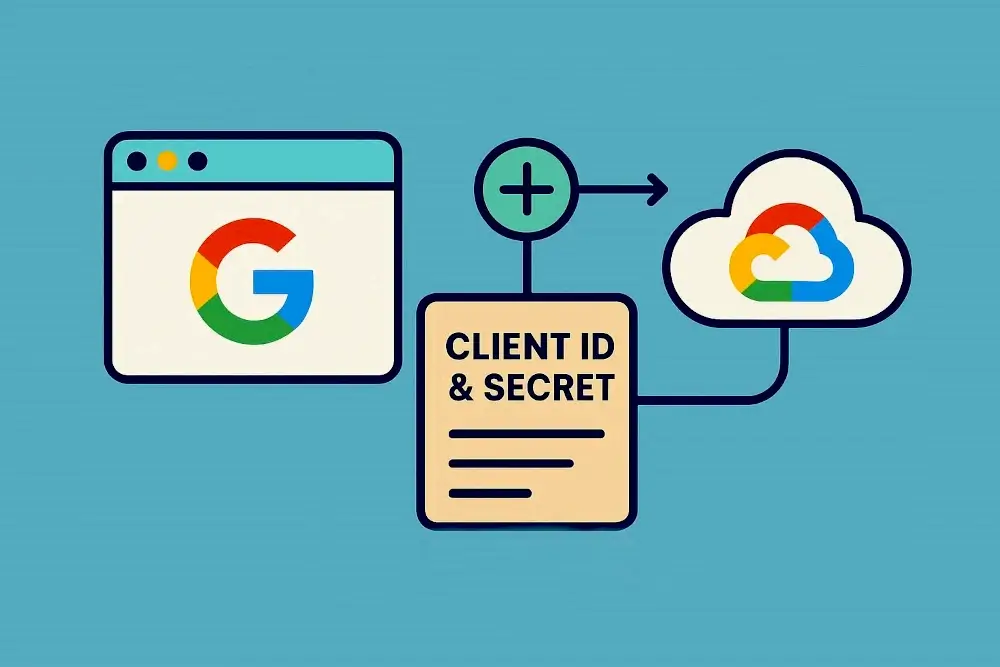
In this useful article, I guide you through creating a Google Social Login Client ID and Client Secret for Your Website. Google Social Login is one of the most trusted and widely used authentication systems for websites. It allows users to sign in using their Google account, making the login process faster, safer, and more convenient. If you want to add Google login to your website, you must first create a Google Client ID and Client Secret.
In this complete step-by-step guide, you will learn how to create Google Social Login credentials for your website, including how to configure OAuth consent, set redirect URLs, and avoid common errors. This guide works for PHP, Laravel, WordPress, and other web platforms.
Why Google Social Login Needs Client ID & Secret?
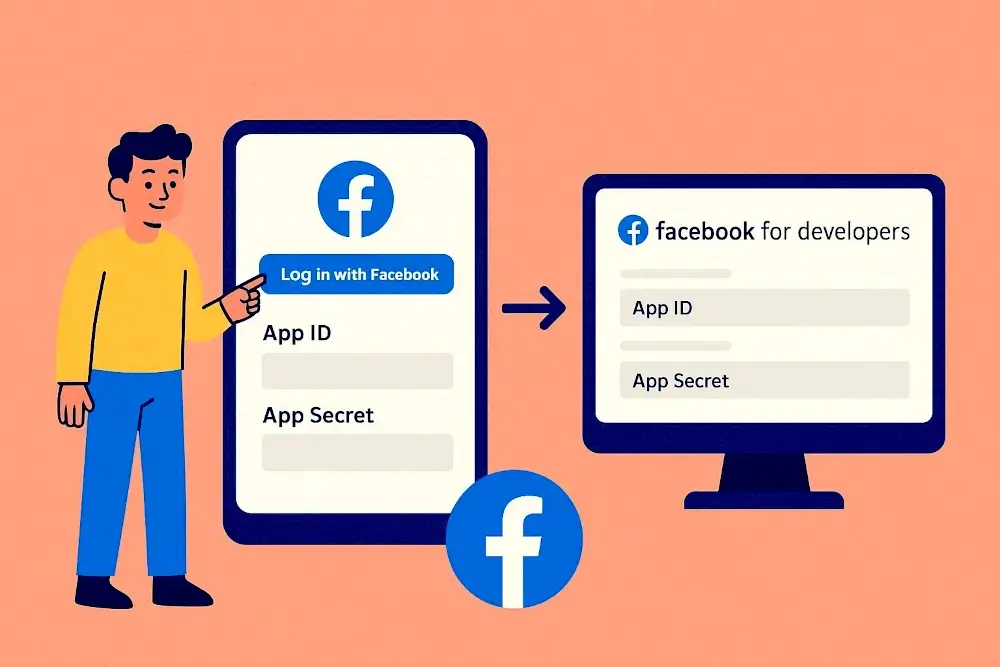
Google Social Login is an authentication method that lets users log in to a website using their existing Google account. Instead of creating a new username and password, users can sign in with a single click. Also, read our useful article on how to create a Facebook App ID and Secret ID.
Why Google Login Is Important for Websites?
- Faster user registration
- Higher signup conversion rate
- Strong security by Google
- Reduced password management issues
- Trusted by users worldwide
To connect your website with Google Login, Google uses OAuth 2.0, which requires two credentials:
- Client ID – A public identifier for your application
- Client Secret – A private key used to verify your website
These credentials ensure secure communication between your website and Google servers.
Watch Video Guide - Social Login Google Client ID & Secret
Step 1: Create or Access Google Cloud Console Account
To create Google Login credentials, you need access to Google Cloud Console.
Steps
- Visit Google Cloud Console
- Sign in with your Google account
- Accept the terms if prompted
Once logged in, you will see the Google Cloud dashboard
Step 2: Create a New Google Cloud Project
Each Google Login setup requires a project.
How to Create a Project?
- Click on Select Project
- Click New Project
- Enter a Project Name (Example: Website Google Login)
- Select your organization (optional)
- Click Create
- After a few seconds, your project will be ready.
Step 3: Configure OAuth Consent Screen
The OAuth consent screen is what users see when they log in with Google.
- Steps to Configure OAuth Consent
- Go to APIs & Services
- Click the OAuth consent screen
- Choose External (for public websites)
- Click Create
- Fill Required Information
- App Name
- User Support Email
- Developer Contact Email
- App Logo (optional)
- Click Save and Continue.
Step 4: Set Scopes and Test Users
Scopes define what data your website can access.
- Recommended Scopes
- profile
- openid
These are enough for a basic Google login.
If your app is in testing mode, add test users’ email addresses.
Then click Save and Continue and Back to Dashboard.
Step 5: Create Google Client ID and Client Secret
Now it’s time to generate the actual Google login credentials.
Steps
- Go to APIs & Services
- Click Credentials
- Click Create Credentials
- Select OAuth Client ID
- Choose Web Application
- Configure Application
- Name: Website Google Login
- Authorized JavaScript Origins
- Example: https://yourwebsite.com
- Authorized Redirect URIs
- Example: https://yourwebsite.com/google-callback
- Click Create.
Step 6: Copy Client ID and Client Secret
After creation, Google will show your credentials.
You will see:
- Client ID
- Client Secret
- Copy both values and store them securely. These are required for Google login integration.
Step 7: Set App to Production Mode
If your app is in testing mode, only test users can log in.
Steps
- Go to the OAuth consent screen
- Click Publish App
- Confirm production status
- Now all users can log in using Google.
Step 8: Integrate Google Login into Your Website
Once you have the Client ID and Client Secret, you can integrate Google login into your website.
- General Integration Process
- Install the Google OAuth library or SDK
- Add Google login button
- Use Client ID and Client Secret in the configuration
- Handle callback and user data
- Save or create a user in the database
Google login works smoothly with:
- PHP websites
- Laravel applications
- WordPress plugins
- React and Node.js apps
- Common Google Login Errors and Fixes
1. Redirect URI Mismatch
Ensure the redirect URI in Google Cloud matches exactly with your website callback URL.
2. App Not Published
Publish the OAuth consent screen to allow real users.
3. Invalid Client ID
Check that the correct Client ID is used in your website code.
4. Missing Scopes
Make sure email and profile scopes are enabled.
Best Practices for Google Social Login
Always use HTTPS
- Keep Client Secret private
- Use secure session handling
- Validate Google tokens on the server
- Follow Google OAuth security guidelines
- SEO Benefits of Google Social Login
Adding Google login improves:
- User experience
- User trust signals
- Registration speed
- Engagement metrics
- Conversion rate
These factors indirectly help your website’s SEO performance.
Conclusion
Creating a Google Social Login Client ID and Client Secret for your website is a straightforward process when done correctly. Google login makes your website more user-friendly, secure, and professional.
By following this guide, you can successfully create Google OAuth credentials and integrate Google social login into your website. Whether you’re using PHP, Laravel, WordPress, or any other platform, Google login is a powerful feature worth adding. For more useful articles, visit our website, WebDecky.
Comments (0)
No comments yet. Be the first to comment!
Leave a Comment